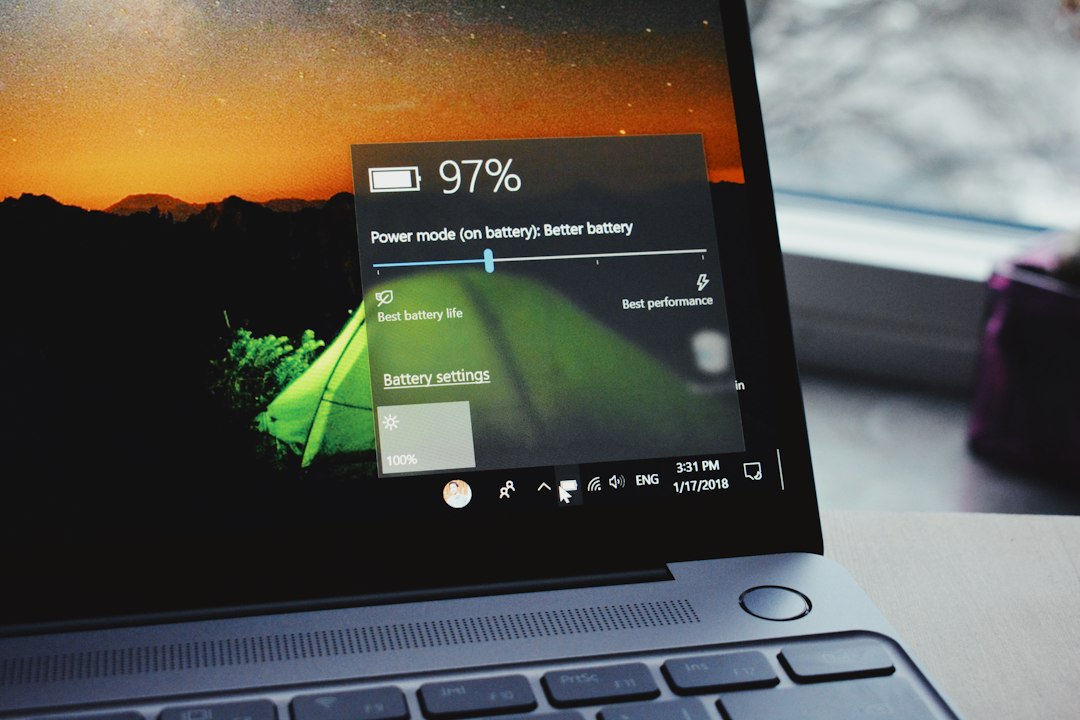
To increase your laptop battery life, lower the screen brightness, turn on Windows Energy Saver and the best power efficiency mode, close heavy background apps, keep the laptop cool and use your maker’s battery health setting if you keep it plugged in. These simple changes can add a lot of extra time on a charge and slow down battery wear. Here are 12 easy tips you can try today.
Key Takeaways
- The screen is one of the biggest battery drains, so lowering brightness helps the most.
- Energy Saver and the Best power efficiency mode in Windows 11 reduce background activity.
- Heavy apps, browser tabs and startup programs quietly use power, so close what you do not need.
- Heat is the enemy of battery health, so keep your laptop cool and ventilated.
- A battery report tells you how healthy your battery is and when it may need replacing.
Why Does Laptop Battery Life Drop Over Time?
Laptop batteries are lithium-ion batteries, and they wear down a little with every charge cycle. Heat, very high charge levels kept for long periods and heavy use speed up the wear. Software also matters. Apps running in the background, a bright screen and a high refresh rate all use more power, so the same battery can feel much shorter on a busy day.

How to Increase Laptop Battery Life: 12 Easy Tips
1. Lower your screen brightness
Your display is one of the biggest power users, and keeping it at around 40 to 50 percent brightness is enough for most indoor rooms. Use the brightness slider in Quick Settings, or turn on adaptive brightness if your laptop supports it.
2. Choose the Best power efficiency mode
In Windows 11, open Settings, go to System, then Power and battery, and set Power mode to Best power efficiency while you are on battery. This slows background activity a little in exchange for longer battery life. Choose Balanced or Best performance only when you need speed.
3. Turn on Energy Saver
Energy Saver, called Battery Saver in older versions of Windows, reduces background activity and screen brightness and limits some notifications when the battery gets low. In Power and battery settings, you can make it switch on automatically at a battery level such as 20 percent, or turn it on earlier if you want to stretch the charge.
4. Close heavy apps and background programs
Press Ctrl, Shift and Esc to open Task Manager and look at which apps use the most CPU and power. Close what you do not need. Also trim the Startup apps list so fewer programs launch when you turn on the laptop. If your PC feels slow generally, our guide to speeding up your Windows 11 PC can help.
5. Check which apps use the most battery
In Settings, System, Power and battery, open Battery usage to see which apps have drained your battery over the last day or week. Uninstall or limit the worst offenders.
6. Shorten the screen timeout and sleep settings
Under Power and battery, set Screen and sleep so that the display turns off after a short time on battery, such as two to five minutes, and the laptop sleeps soon after.
7. Turn off what you are not using
Switch off Bluetooth, Wi-Fi if you are working offline, the keyboard backlight and any external devices plugged into USB ports. Each one uses a little power, and together they add up.
8. Lower the refresh rate if your screen has a high one
Many laptops run a 120 Hz or 144 Hz display, which uses more power than 60 Hz. In Settings, System, Display, Advanced display, you can choose a lower refresh rate, or enable dynamic refresh rate if it is available.
9. Use dark mode on OLED screens
Dark mode saves real power on OLED displays, because dark pixels use less energy. On a standard LCD screen the effect is small, so do not expect big gains there.
10. Keep the laptop cool
Heat damages lithium-ion batteries over time. Use the laptop on a hard, flat surface instead of a bed or sofa, keep the vents clear and avoid leaving it in a hot car. Clean dust from the vents and fans if the laptop runs loud and hot.
11. Charge smartly
Modern laptops manage charging well, so you do not need to obsess over it, but a few habits help. Avoid draining the battery to zero again and again, and avoid leaving it at 100 percent plugged in for months. Windows 11 has no built-in charge limit, but many makers, such as Lenovo, ASUS, Dell and HP, include a battery health or conservation mode in their own app that caps charging, often around 80 percent. Turn it on if you use your laptop mostly at a desk.
12. Keep software, drivers and BIOS updated
Updates often improve power management. Install Windows updates and driver updates, and check your maker’s site for firmware fixes. If you decide to update the BIOS, follow our careful guide to updating your BIOS.
You can also use Efficiency mode in Microsoft Edge, which lowers the resources used by background tabs, and avoid keeping lots of heavy tabs open.
How Do You Check Your Laptop Battery Health?
Windows can create a battery report that shows how much capacity your battery has now compared with when it was new. Follow these steps:
- Right-click the Start button and open Terminal or Command Prompt.
- Type
powercfg /batteryreportand press Enter. - Open the HTML file that Windows saves, and compare the design capacity with the full charge capacity.
If the full charge capacity is far below the design capacity and your battery dies quickly, it may be time to replace it. Many laptops have a replaceable battery, and some manufacturers offer a battery service.
What Should You Do If the Battery Still Drains Fast?
- Restart the laptop. A stuck app or process can drain power.
- Scan for malware. Hidden miners and unwanted software use power. Try our guide to removing malware from your PC.
- Check for a heavy app. Look at Battery usage and remove the culprit.
- Disconnect extra devices. Phones and drives charged from your laptop drain it.
- Replace the battery. After several years of daily use, the capacity naturally falls.
What Should You Look for in a New Laptop?
If you are buying a new laptop, look at independent battery tests, not just the maker’s claims, and consider efficient processors and a 60 Hz or adaptive display. Our guide to the best laptop under $500 for programming covers affordable options.
Frequently Asked Questions
How can I make my laptop battery last longer?
Lower the brightness, use Energy Saver and the Best power efficiency mode, close heavy apps, keep the laptop cool and charge it smartly. These changes help most.
Should I keep my laptop plugged in all the time?
It is fine, but heat and a constant 100 percent charge can age the battery. If you use your laptop at a desk, turn on a battery health or charge limit mode in your maker’s app.
Does dark mode save battery?
It saves noticeable power on OLED screens, but only a little on standard LCD screens.
How do I check my laptop battery health in Windows 11?
Open Terminal or Command Prompt, run powercfg /batteryreport and compare the design capacity with the full charge capacity in the report.
Why does my laptop battery drain so fast?
Common causes include a bright screen, heavy background apps, a high refresh rate, heat, an ageing battery and sometimes malware. Check Battery usage in Settings to find the cause.
When should I replace my laptop battery?
Replace it when the full charge capacity has fallen a long way below the design capacity and the laptop no longer lasts through your normal use.
Conclusion
You can usually get noticeably more time from your laptop battery with a few simple settings. Dim the screen, use Energy Saver and Best power efficiency, close heavy apps, keep the laptop cool, charge smartly and check the battery report now and then. Combine these habits with updated software, and your laptop will last longer on every charge and stay healthy for years.
Related reading: How to speed up your Windows 11 PC · How to update your BIOS · How to remove malware from your PC · Best laptop under $500 for programming