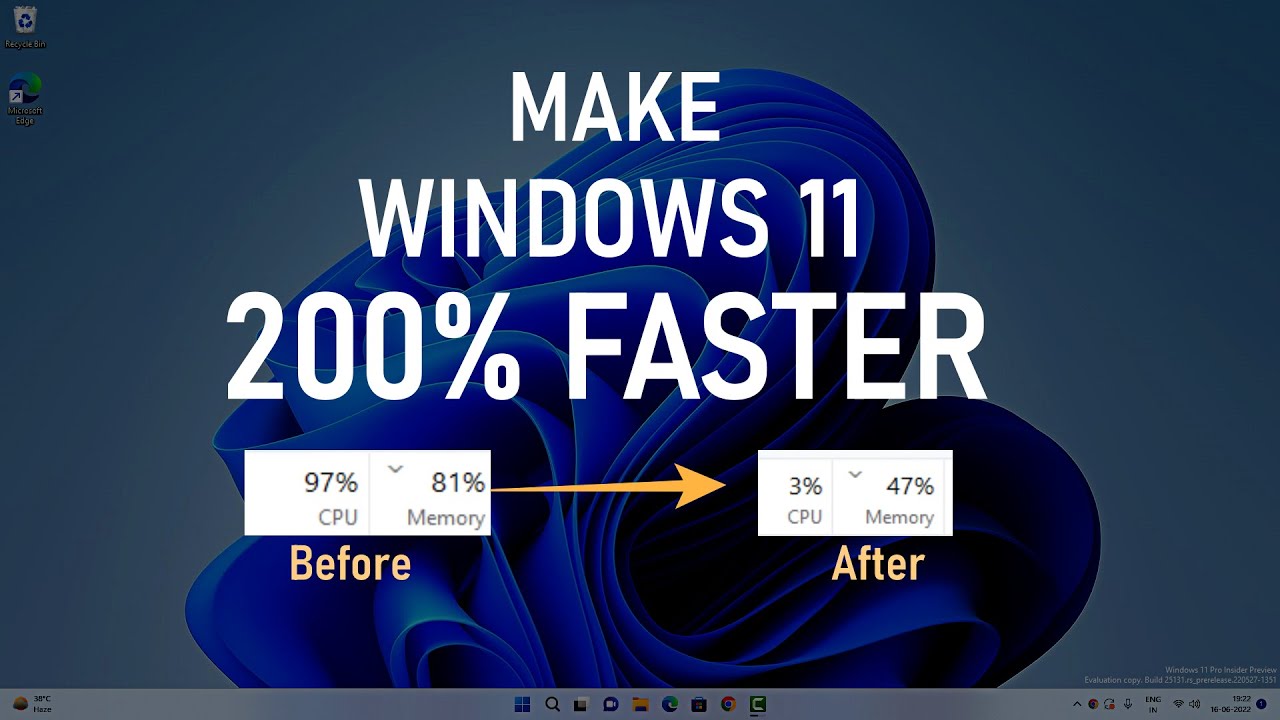
Quick Answer: The fastest ways to speed up Windows 11 in 2026 are: disable startup apps, turn off visual effects, enable Storage Sense, switch to High Performance power plan, disable background apps, and update your drivers. Most of these take under 5 minutes each and collectively make a dramatic difference.
Your Windows 11 PC was fast when you first got it. Now it feels like it is running through wet concrete. Sound familiar? You are not alone — and the good news is you almost certainly do not need to buy new hardware to fix it.
We tested every major free method to speed up Windows 11 in 2026. Here are the 10 that actually work, ranked from easiest to most impactful. Start at the top and work your way down.
Why Does Windows 11 Get Slow Over Time?
Before fixing the problem, it helps to understand why it happens. Windows 11 slows down for a few common reasons:
- Too many apps launching at startup and running in the background
- A full or nearly full hard drive
- Outdated drivers — especially GPU and chipset drivers
- Visual effects and animations consuming CPU resources
- Windows running a power-saving plan instead of high performance
- Malware or bloatware consuming resources silently
The fixes below address all of these causes — for free, with no risky registry edits or third-party “cleaner” tools needed.
1. Disable Unnecessary Startup Apps (Biggest Impact)
This is the single most impactful change you can make. Every time your PC boots, Windows launches dozens of apps in the background — most of which you never asked for and never use. Each one consumes RAM and CPU before you have even opened a single program.
How to do it:
- Press Ctrl + Shift + Esc to open Task Manager
- Click the Startup apps tab on the left
- Look at the Startup impact column — sort by High impact
- Right-click any app you do not need at startup and select Disable
- Safe to disable: Spotify, Discord, Teams, OneDrive, Zoom, Adobe updaters, game launchers
- Do NOT disable: Windows Security, antivirus software, audio drivers
Expected result: Boot time can improve by 30–60 seconds. Your PC feels noticeably more responsive in the first few minutes after startup.
2. Turn Off Visual Effects and Animations
Windows 11 is beautiful — but those animations, transparency effects, and shadows consume real CPU and GPU resources. On older or mid-range hardware, turning them off can make the entire OS feel significantly snappier.
How to do it:
- Press Windows + I to open Settings
- Go to System → Display → Graphics (for GPU scheduling)
- Separately, search for “Adjust the appearance and performance of Windows” in the Start menu
- Select “Adjust for best performance” — or manually uncheck: Animate windows, Animate controls, Fade effects, Show shadows
- Click Apply
For a smaller but still useful tweak: Go to Settings → Accessibility → Visual Effects and turn off both Animation effects and Transparency effects.
Expected result: Menus open faster, window switching feels instant, overall UI responsiveness improves — especially on older CPUs.
3. Enable Storage Sense (Automatic Cleanup)
A drive that is more than 85% full starts to slow down — this applies to both HDDs and SSDs. Windows 11 has a built-in automatic cleanup tool called Storage Sense that handles this for you.
How to do it:
- Press Windows + I to open Settings
- Go to System → Storage
- Toggle Storage Sense to ON
- Click on Storage Sense to configure it — set cleanup to run Weekly
- Enable: Delete temporary files, Empty Recycle Bin after 30 days, Delete files in Downloads older than 60 days
For a deeper one-time cleanup: In the same Storage menu, click Cleanup recommendations and delete large files, old Windows Update files, and temporary data.
Expected result: Free up several GB of disk space. Significant performance improvement if your drive was nearly full.
4. Switch to High Performance Power Plan
By default, Windows 11 often runs on a Balanced or Power Saver plan — which deliberately limits your CPU speed to save battery. If you are on a desktop, or plugged into power on a laptop, there is no reason to run anything but High Performance.
How to do it:
- Search for “Power plan” in the Start menu
- Click “Choose a power plan”
- Select High Performance (if not visible, click “Show additional plans”)
- For gaming or demanding tasks: use Ultimate Performance — enable it via PowerShell:
powercfg -duplicatescheme e9a42b02-d5df-448d-aa00-03f14749eb61
Note: On laptops, only switch to High Performance when plugged in. It will drain your battery faster on battery power.
Expected result: CPU runs at full speed instantly instead of ramping up slowly. Noticeable improvement in app launch times and multitasking.
5. Enable Hardware-Accelerated GPU Scheduling
This 2026 tip is surprisingly underused. Hardware-Accelerated GPU Scheduling (HAGS) lets your GPU manage its own video memory instead of relying on the CPU. This reduces CPU bottlenecks, makes everything smoother, and even reduces fan noise.
How to do it:
- Press Windows + I to open Settings
- Go to System → Display → Graphics
- Click Change default graphics settings
- Toggle Hardware-accelerated GPU scheduling to ON
- Restart your PC
Requirement: You need a GPU with an up-to-date driver (NVIDIA GTX 10 series or newer, AMD RX 5000 series or newer).
Expected result: Smoother overall performance, especially in browsers, video playback, and light gaming. Reduced CPU usage during graphical tasks.
6. Disable Background Apps
Many apps — especially ones from Microsoft — run in the background even when you are not using them. They consume RAM and CPU silently. Disabling them can free up significant resources.
How to do it:
- Press Windows + I to open Settings
- Go to Apps → Installed apps
- Click the three dots next to an app and select Advanced options
- Under “Background apps permissions” select Never
- Repeat for apps you rarely use: Mail, Maps, Movies, Xbox Game Bar (if you don’t game)
Alternatively: Use Task Manager’s Processes tab to see what is consuming the most RAM and CPU right now, and close anything unnecessary.
Expected result: More RAM available for the apps you actually use. Noticeable improvement on PCs with 8GB RAM or less.
7. Update Your Drivers — Especially GPU and Chipset
Outdated drivers — particularly GPU, chipset, and NVMe SSD drivers — are one of the most overlooked causes of slow Windows 11 performance in 2026. Driver updates often include significant performance improvements, not just bug fixes.
How to do it:
- GPU drivers: Download directly from NVIDIA (nvidia.com/drivers) or AMD (amd.com/support) — not from Windows Update
- Chipset drivers: Go to your laptop manufacturer’s website (Dell, HP, Lenovo, ASUS) and download the latest chipset driver for your model
- Windows Updates: Go to Settings → Windows Update → Check for updates — install everything including optional driver updates
Expected result: GPU driver updates alone can improve gaming performance by 10–20%. Updated NVMe drivers reduce storage bottlenecks significantly.
8. Use Task Manager Efficiency Mode for Background Apps
This is a lesser-known Windows 11 feature that throttles background applications — giving more CPU priority to the app you are actively using. Think of it as telling Windows: “Focus on what I am doing right now.”
How to do it:
- Press Ctrl + Shift + Esc to open Task Manager
- Click the Processes tab
- Right-click a background app consuming CPU (like a browser with many tabs)
- Select Efficiency mode
- The app icon will show a leaf icon, confirming it is throttled
Expected result: Your active app gets more CPU resources. Especially useful on laptops — also improves battery life significantly.
9. Reduce the Menu Show Delay (Registry Tweak)
Windows 11 adds a small delay before showing menus — it feels like 400 milliseconds of lag every time you right-click. You can reduce this to zero for an instant responsiveness improvement.
How to do it:
- Press Windows + R, type regedit, press Enter
- Navigate to:
HKEY_CURRENT_USER\Control Panel\Desktop - Find MenuShowDelay — double-click it
- Change the value from 400 to 0
- Click OK and restart your PC
Expected result: Right-click menus and Start menu appear instantly. Small change but surprisingly satisfying to notice.
10. Uninstall Bloatware and Unused Apps
If your PC came with Windows pre-installed (especially from manufacturers like Dell, HP, or Lenovo), it almost certainly came with bloatware — apps you never asked for and never use, consuming storage and sometimes running in the background.
How to do it:
- Press Windows + I → Apps → Installed apps
- Sort by Size — uninstall anything large that you do not use
- Common bloatware to remove: McAfee trial, manufacturer “assistant” apps, trial Office versions, gaming apps you don’t use
- For deeper removal: Microsoft’s free PC Manager app safely removes more bloatware without risky scripts
Expected result: Free up storage space, reduce background processes, and improve boot time — all at once.
Quick Summary: 10 Ways to Speed Up Windows 11 in 2026
| Method | Difficulty | Time Required | Impact |
|---|---|---|---|
| 1. Disable startup apps | Easy | 3 minutes | ⭐⭐⭐⭐⭐ Very High |
| 2. Turn off visual effects | Easy | 2 minutes | ⭐⭐⭐⭐ High |
| 3. Enable Storage Sense | Easy | 2 minutes | ⭐⭐⭐⭐ High |
| 4. High Performance power plan | Easy | 2 minutes | ⭐⭐⭐⭐ High |
| 5. GPU scheduling (HAGS) | Easy | 3 minutes | ⭐⭐⭐ Medium |
| 6. Disable background apps | Easy | 5 minutes | ⭐⭐⭐ Medium |
| 7. Update GPU/chipset drivers | Medium | 15 minutes | ⭐⭐⭐⭐⭐ Very High |
| 8. Task Manager Efficiency Mode | Easy | 2 minutes | ⭐⭐⭐ Medium |
| 9. Reduce menu delay (registry) | Medium | 3 minutes | ⭐⭐ Low-Medium |
| 10. Uninstall bloatware | Easy | 10 minutes | ⭐⭐⭐ Medium |
What If Your PC Is Still Slow After All This?
If you have tried everything above and your PC is still painfully slow, it might be a hardware limitation. Here are the most cost-effective hardware upgrades to consider:
- Upgrade RAM to 16GB: If you have 8GB or less, this is the single best hardware upgrade for general use in 2026. DDR4 16GB kits are affordable.
- Replace HDD with SSD: If you still have a spinning hard drive, replacing it with an SSD will make your PC feel like a completely different machine. Boot times go from 2 minutes to under 15 seconds.
- Check for malware: Run a full scan with Windows Defender (it is free and built in) or Malwarebytes Free. Hidden malware is sometimes the cause of unexplained slowdowns.
Final Thoughts
You do not need to spend money or become a tech expert to speed up Windows 11. Start with the three most impactful free changes: disable startup apps, turn off visual effects, and update your GPU drivers. Do those three things today and you will notice a real difference before your next cup of coffee.
After that, work through the rest of the list at your own pace. Each one adds a small improvement, and together they add up to a PC that feels significantly faster — without spending a penny.
Want to keep your faster PC secure? Check out our guide on the Best Password Managers in 2026 to protect all your accounts.
Frequently Asked Questions
How can I speed up Windows 11 without buying new hardware?
The most effective free methods to speed up Windows 11 without new hardware are: disabling unnecessary startup apps via Task Manager, turning off visual effects and animations, enabling Storage Sense, switching to the High Performance power plan, and updating your GPU and chipset drivers. Together, these can dramatically improve performance in under 30 minutes.
Why is Windows 11 so slow in 2026?
Windows 11 slows down over time due to too many startup apps, background processes consuming RAM and CPU, a nearly full hard drive, outdated drivers, and visual effects taxing older hardware. The good news is all of these can be fixed for free using Windows 11’s built-in settings — no third-party tools required.
Does disabling visual effects actually speed up Windows 11?
Yes — especially on older or mid-range hardware. Turning off animations, transparency effects, and shadows in Windows 11 reduces the load on your CPU and GPU. On PCs with 8GB RAM or integrated graphics, this can make the UI feel noticeably more responsive immediately.
Is it safe to edit the Windows registry to speed up Windows 11?
The MenuShowDelay registry tweak mentioned in this guide is safe and well-documented. However, as a general rule, avoid making unknown registry changes from random websites — they can cause instability. Stick to documented tweaks from trusted sources and always know what you are changing before you change it.
Will upgrading to 16GB RAM speed up Windows 11?
Yes — if you currently have 8GB or less and you multitask regularly, upgrading to 16GB RAM is the single most impactful hardware upgrade you can make for Windows 11 in 2026. It allows more apps to run simultaneously without slowdown and significantly reduces the time Windows spends using the slower page file on your drive.
Does Windows 11 24H2 run faster than older versions?
Yes. Windows 11 24H2 introduced faster boot times via improved hibernation handling, lower memory overhead from updated system processes, and better CPU scheduling for hybrid-core processors. If you have not updated to 24H2, go to Settings → Windows Update and install it — it is a free performance improvement.