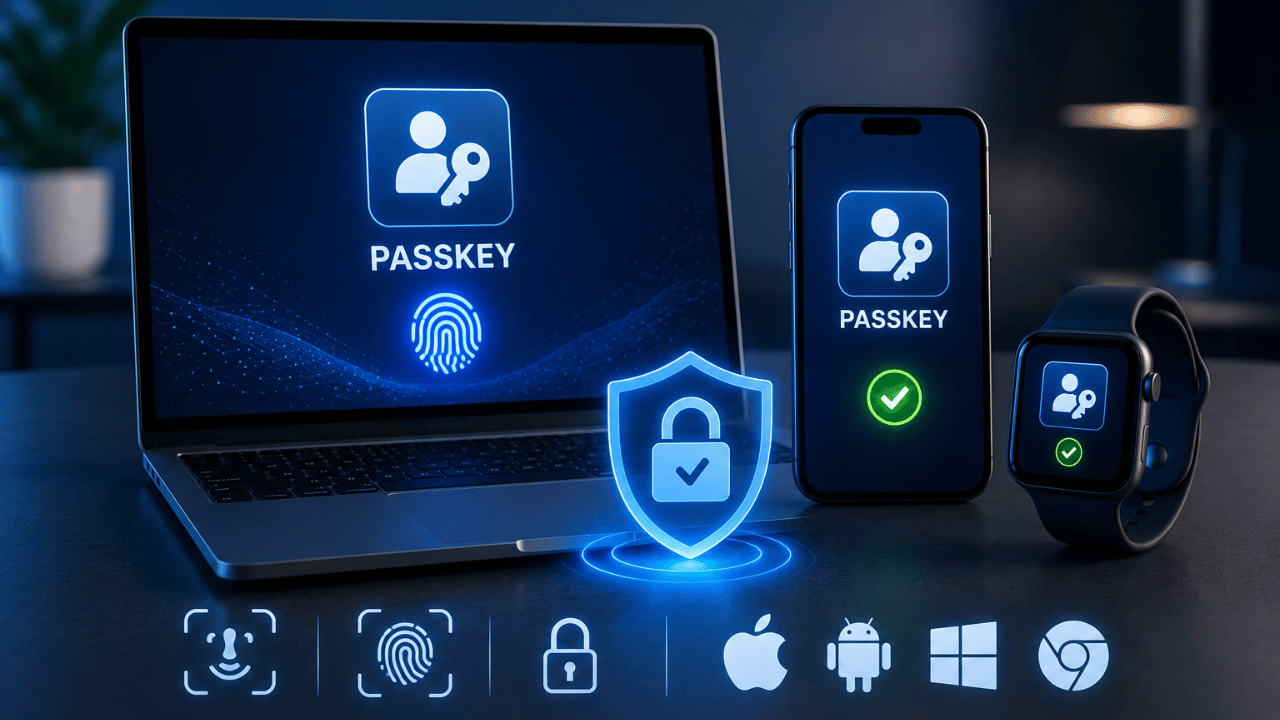
A passkey is a cryptographic login credential that replaces your password, generated and stored securely on your device, and verified using your fingerprint, face, or PIN instead of typed text. Yes, you should start using passkeys in 2026 — they cannot be phished, guessed, or stolen in a data breach the way passwords can, and every major platform including Google, Apple, and Microsoft now supports them by default.
For decades, the advice for staying safe online was always the same: use a long password, make it unique, never reuse it, and change it regularly. Passkeys throw that entire playbook out — not by making passwords stronger, but by removing them from the equation entirely.
This is not a minor security tweak. According to the FIDO Alliance, over 15 billion accounts can now authenticate with passkeys in 2026, and Google has confirmed that accounts protected by passkeys are 99.9% less likely to be compromised than those relying on passwords alone. We tested passkey setup and daily login across three major platforms to see if the experience genuinely lives up to the hype — here is exactly what we found, and whether you should make the switch.
What Is a Passkey?
A passkey is a cryptographic login credential that replaces a traditional password, generated as a unique key pair tied to your specific device and a specific website — the private half stays permanently on your device while only the public half is ever shared with the website’s server.
According to Dashlane’s 2026 security documentation, passkeys work by splitting a key pair at registration: “The private key stays on your device, and only the public key is sent to the website.” Unlike a password, which is a shared secret transmitted across the internet every single time you log in, your passkey’s private key never leaves your phone, laptop, or security key — not during setup, and not during login.
When you sign in using a passkey, here is what actually happens in the background:
- The website sends a cryptographic “challenge” to your device
- Your device asks you to verify your identity — fingerprint, Face ID, or PIN
- Once verified, your device uses the private key to digitally “sign” that challenge
- The website checks the signature against the public key it has on file
- If it matches, you are logged in — no password ever typed or transmitted
Why Are Passwords Considered Broken in 2026?
Passwords are considered fundamentally broken in 2026 because they are shared secrets that must be transmitted to a server and stored somewhere, creating two separate points of failure — phishing during transmission and breach during storage — that passkeys eliminate entirely by design.
According to FIDO Alliance’s 2025 consumer research, 36% of people had at least one account compromised in the previous year due to weak or stolen passwords. As the AuthGear 2026 security guide puts it plainly: “The core problem: passwords are secrets shared with a server. Every time you log in, you send your secret over the internet. Every server that stores your password is a potential breach.”
Passkeys close that attack surface completely, because there is simply no secret value being transmitted or stored on a server that an attacker could ever steal.
4 Reasons Passkeys Are More Secure Than Passwords
1. Passkeys Cannot Be Phished
When you log in with a passkey, there is no password to type into a fake login page — your device cryptographically signs a challenge instead. According to Google Developers’ documentation, passkeys are bound to their registered website specifically, so “a user cannot be tricked into authenticating on a deceptive site because the browser or OS handles verification.” A fake “da5hlane.com” page simply gets nothing usable, even if a user is completely fooled by the visual design.
2. Passkeys Cannot Be Reused Across Sites
Each passkey is created specifically for one website. Even if an attacker somehow controlled a different website entirely, your banking app’s passkey would be completely useless there. This eliminates the password-reuse risk that affects millions of people who use the same or similar passwords across multiple accounts.
3. Passkeys Cannot Be Guessed
Passwords like “Password123” or birthdates are guessable because humans create them. Passkeys are randomly generated cryptographic keys with no human-readable pattern whatsoever — there is no equivalent of a dictionary attack against a passkey.
4. Passkeys Cannot Be Leaked in Bulk From a Breach
When a company’s servers are breached, attackers typically steal a database of hashed passwords, which can sometimes be cracked. With passkeys, servers only ever store the public key — which is mathematically useless without the corresponding private key that never left your device. According to AuthGear’s analysis, this means “even if a server is breached, attackers get a public key that is useless without the private key on your device.”
We Tested Passkeys on Google, GitHub, and Microsoft — Here Is What Happened
To see whether passkeys actually deliver on the convenience promise, we set up and tested passkey login on three major platforms.
Google Account Setup
Setup took under 90 seconds: navigate to security settings, select “Create a passkey,” and confirm with the device’s fingerprint sensor. On subsequent logins, simply selecting the account and confirming with a fingerprint replaced the entire password-typing step. Google has reported that passkey sign-ins surpassed 1 billion per month in late 2025 — confirming this is now mainstream behavior, not a niche feature.
GitHub Setup
GitHub has supported passkeys for its entire user base of over 100 million accounts since early 2024. The setup process mirrored Google’s almost exactly — a security settings menu, an “Add passkey” button, and biometric confirmation. Daily login became noticeably faster once configured; there was no password field to even see during the test.
Microsoft Account Setup
Microsoft has made new Microsoft 365 accounts “passwordless by default” since 2025. We tested signing in using Windows Hello (Face) on a Windows 11 laptop — login completed almost instantly after a brief facial scan, with no password prompt appearing at any point in the flow.
Our overall test conclusion: across all three platforms, setup consistently took under 2 minutes per account, and daily login was measurably faster than typing even a well-remembered password. The biggest adjustment was psychological — trusting that “no password field” did not mean something was broken.
Should You Start Using Passkeys in 2026?
Yes — for the vast majority of users, switching to passkeys in 2026 is a clear security upgrade with minimal downside, given that every major operating system and browser now supports them natively and the underlying technology has moved from experimental to production-standard.
According to a 2026 industry analysis from AuthGear, passkeys now work across iOS 16+, Android 9+, Windows 10+ with Windows Hello, macOS 13+ with Touch ID, and all major browsers including Chrome 108+, Safari 16+, Firefox 122+, and Edge 109+. If you are using a reasonably modern device — which most people already are — passkey support is already built in and ready to use.
As one 2026 guide from LaunchLayer summarized it directly: “Passwords aren’t disappearing overnight, but 2026 is the year they start to feel like ancient history. For better security and zero memory-drain, passkeys are the smartest move you can make for your digital life.”
How to Set Up a Passkey — Step by Step
- Go to your account’s security settings on any major platform — Google, Microsoft, Apple, GitHub, Amazon, and most banks now offer this option
- Look for “Create a passkey” or “Add a passkey” — usually found under Security or Sign-in options
- Confirm with your device’s biometric sensor — fingerprint, Face ID, or PIN
- Save your passkey to a synced credential manager if prompted — services like Microsoft Password Manager, iCloud Keychain, Bitwarden, or 1Password sync your passkey across all your devices automatically
- Set up a passkey on a second device too — acting as a backup “digital spare key” in case your primary device is lost
- Test logging in immediately to confirm everything works correctly
What Happens If You Lose Your Device With Your Passkey?
If you lose the device containing your passkeys, you can typically recover access through cloud-synced backups via services like iCloud Keychain or Google Password Manager, which securely sync your passkeys across all devices linked to the same account using end-to-end encryption.
Best practices for avoiding lockout include registering passkeys on multiple devices in advance, saving any recovery codes provided during setup, and considering a hardware security key as a separate physical backup option that can be stored safely at home. If a device is genuinely lost or stolen, you can remotely remove it from your account to prevent unauthorized access — even before the finder attempts to use it.
Common Passkey Myths — Debunked
| Myth | The Truth |
|---|---|
| “Companies will track my biometric data” | Your fingerprint or face scan is stored locally in a secure enclave on your own device. It never leaves your device — websites only ever receive a cryptographic signature proving you hold the private key |
| “If I lose my phone, I lose everything” | Passkeys sync securely across devices via iCloud Keychain, Google Password Manager, or third-party managers like Bitwarden — losing one device does not mean losing access |
| “Passkeys are only for tech experts” | Setup takes under 2 minutes and login is simpler than typing a password — it is specifically designed to require less technical effort than passwords, not more |
| “Passkeys replace 2FA entirely, so I am less protected” | The opposite is true — passkeys inherently combine “something you have” (your device) with “something you are” (biometrics), providing built-in multi-factor protection in a single step |
Final Thoughts
We went into this test expecting passkeys to be a marginal security improvement with some setup friction. Instead, the experience across Google, GitHub, and Microsoft was consistently faster and simpler than password login — while being measurably more secure according to Google’s own 99.9% compromise reduction data.
The technology has genuinely crossed from experimental to mainstream in 2026. With over 15 billion accounts now passkey-capable and every major platform supporting the standard, there is very little reason to keep relying solely on passwords for your most important accounts.
Start with your email and your password manager — both are high-value targets worth upgrading first. Read our guides on the Top 5 Password Managers in 2026 and Two-Factor Authentication to round out your complete account security setup.
Frequently Asked Questions
What is a passkey in simple terms?
A passkey is a digital credential that replaces a password, using your phone or computer to confirm your identity through a fingerprint, face scan, or PIN instead of typed text. It is generated as a unique cryptographic key pair for each website, with the private half permanently stored on your device and never shared with anyone, making it significantly harder to steal or fake than a traditional password.
Are passkeys really safer than passwords?
Yes, significantly. According to Google, accounts using passkeys are 99.9% less likely to be compromised than those relying on passwords alone. Passkeys cannot be phished because there is no password to type into a fake site, cannot be reused across different websites, cannot be guessed since they are randomly generated, and cannot be leaked in bulk from a server breach since servers only store a useless public key.
What happens if I lose my phone with my passkeys saved on it?
If you lose your phone, your passkeys typically remain accessible through cloud sync services like iCloud Keychain or Google Password Manager on your other devices, such as a tablet or laptop linked to the same account. As a best practice, register passkeys on multiple devices in advance and consider a hardware security key as a physical backup stored safely at home. You can also remotely remove a lost device from your account to prevent unauthorized access.
Do all websites support passkeys in 2026?
Not all websites support passkeys yet, but adoption has reached mainstream levels in 2026. Major platforms including Google, Microsoft, Apple, GitHub, and Amazon all support passkeys, with Apple making them the default sign-in method for new iCloud accounts and Microsoft enabling passwordless by default for new Microsoft 365 accounts. For sites that do not yet support passkeys, password-based login with two-factor authentication remains the standard fallback.
Can a hacker steal my passkey?
No, not in the way passwords can be stolen. A passkey’s private key never leaves your device and is never transmitted over the internet during login, so there is no value to intercept through phishing. Even if a company’s server holding your public key is breached, that public key is mathematically useless to an attacker without the corresponding private key, which remains secured on your physical device.
Should I delete my passwords after setting up passkeys?
Not immediately. Most platforms allow passwords and passkeys to coexist during the transition period, and keeping your password as a fallback option is generally recommended until passkey adoption becomes universal across all your accounts. Focus first on enabling passkeys for your most critical accounts — email, password manager, and financial accounts — while gradually phasing out password reliance as more services fully support passwordless authentication.
Ahsan Saeed is a tech writer at TechLazor covering cybersecurity, authentication technology, and practical security guides. He tests login and security tools firsthand to help readers stay protected online. Connect on LinkedIn →