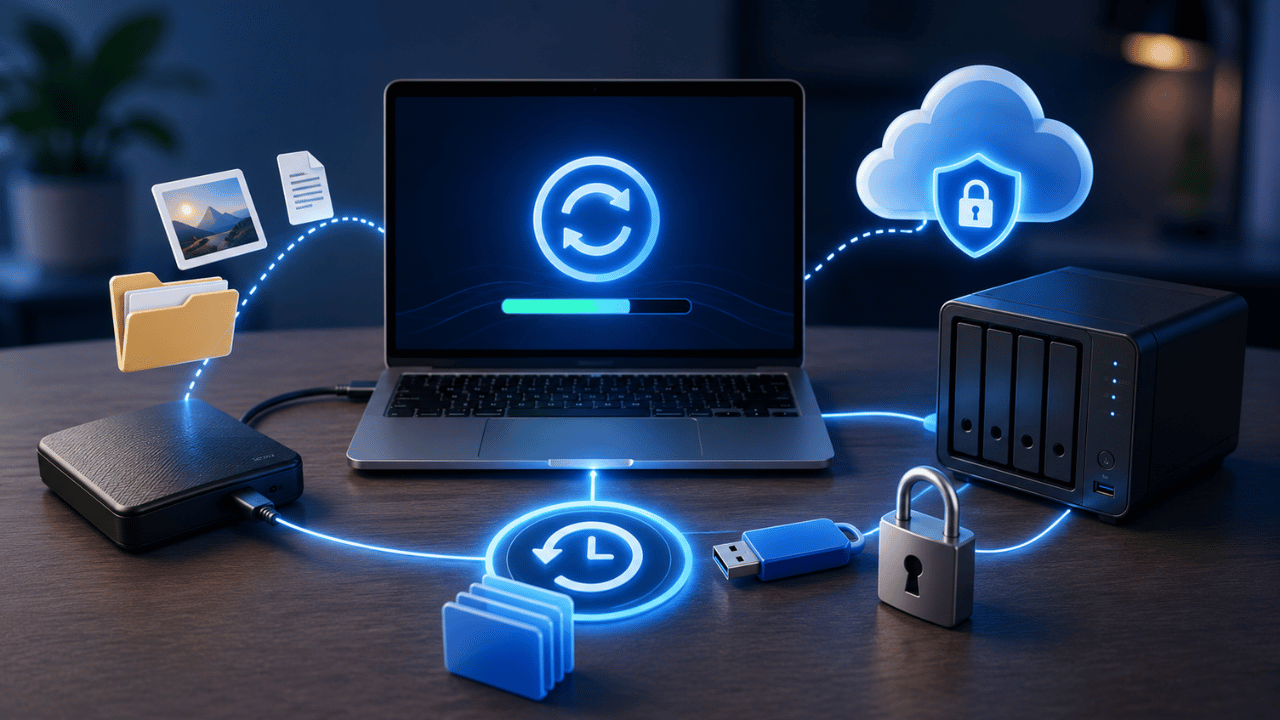
To backup your computer data safely in 2026, follow the 3-2-1 rule: keep 3 copies of your data, on 2 different types of storage media, with 1 copy stored offsite. The most reliable combination for most people is an automatic cloud backup service like Backblaze paired with a local external SSD, with both running on an automated schedule so backups happen without you having to remember.
Here is an uncomfortable fact: data loss is not rare — it is expected. According to a 2026 World Backup Day survey, nearly one in three people have never backed up their data at all, despite the population’s growing dependence on digital files for work, memories, and finances.
And the cause is rarely dramatic. Human error — accidental deletion — is one of the most common reasons people lose data, beating hackers and ransomware combined. One wrong click on the wrong folder, and years of photos, documents, or work can disappear in seconds.
We tested the most recommended backup approaches for 2026 — cloud-only, local-only, and a hybrid setup — to determine exactly what works, what fails, and how to set up a system that runs on autopilot. Here is the complete guide.
What Is the 3-2-1 Backup Rule?
The 3-2-1 backup rule is the industry-standard data protection framework that requires keeping 3 total copies of your data, stored on 2 different types of media, with 1 copy kept offsite — a structure designed to protect against every common cause of data loss simultaneously.
Here is exactly what each number means:
- 3 copies — your original file plus at least two backups (never rely on just one copy)
- 2 different media types — for example, a local external drive AND cloud storage, not two copies on the same type of device
- 1 offsite copy — typically your cloud backup, stored in a different physical location to protect against fire, flood, or theft
This structure works because it protects against every major threat at once: if your laptop’s hard drive fails, your external copy restores everything. If your house burns down or is robbed, your offsite cloud copy survives untouched. If ransomware encrypts your local files, a clean offsite backup remains accessible and unaffected.
Why Just One Backup Method Is Not Enough
Relying on a single backup method leaves a specific vulnerability unprotected, because every backup type has at least one failure scenario where it provides no protection at all — combining methods closes these gaps.
According to Computer Techs’ 2026 guide, simply moving files to an external flash drive to save space is “not a backup — and not recommended.” If that external drive gets lost, stolen, or corrupted, the data is permanently gone, with no second copy to fall back on.
We compared the two main approaches directly:
| Scenario | Cloud-Only Backup | Local-Only Backup |
|---|---|---|
| House fire or theft | ✅ Safe — stored remotely | ❌ Lost — physically destroyed |
| Hardware failure | ✅ Safe — unaffected | ✅ Safe (if drive survives) |
| Need fast full restore | ❌ Slow — can take days for 500GB+ | ✅ Fast — hours via direct connection |
| Internet outage | ❌ Inaccessible | ✅ Works offline |
| Ransomware attack | ✅ Usually safe if versioned | ⚠️ Vulnerable if drive stays connected |
As one 2026 backup guide summarized it plainly: “Cloud backup wins when your home burns down or your laptop gets stolen. Local backup wins when you need to restore a PC fast.” Neither method alone covers every scenario — which is exactly why the 3-2-1 rule exists.
The Best Backup Methods in 2026 — Tested and Compared
1. Cloud Backup Services — Best for Offsite Protection
Cloud backup services automatically and continuously upload your files to remote servers, providing the offsite protection layer required by the 3-2-1 rule without any manual effort once configured.
Top cloud backup services in 2026:
- Backblaze — unlimited backup for a single computer at approximately $99/year, runs continuously in the background
- iDrive — full system backups with strong encryption, supports multiple devices on one plan
- Google One / iCloud / OneDrive — best for users already inside that specific ecosystem (Android, Apple, or Windows)
We set up Backblaze on a test machine and confirmed it runs silently in the background, automatically backing up new and changed files with no manual trigger required — exactly the kind of “set it and forget it” automation that prevents backups from being skipped due to forgetfulness.
2. Local External Storage — Best for Fast Recovery
Local backups using an external SSD or hard drive provide the fastest possible recovery speed because data transfers directly via cable rather than over an internet connection, which matters significantly when restoring large amounts of data.
According to a 2026 backup guide comparison, downloading 500GB of data from the cloud can take days on a typical home internet connection, while restoring the same amount from an external drive takes only a few hours. For anyone who needs to get back up and running quickly after a hardware failure, this speed difference matters enormously.
Recommended setup: An external SSD costing roughly $60 to $80 is now considered the standard for local backups in 2026 — solid-state drives have become fast and affordable enough to replace older spinning hard drives for this purpose.
3. Built-In OS Backup Tools — Free and Automatic
Both Windows and macOS include free, built-in backup tools that automate the local backup process once configured, removing the need for third-party software for basic local backup needs.
- Windows: File History or Backup and Restore — schedule automatic backups to an external drive
- Mac: Time Machine — creates hourly backups for the past 24 hours, daily backups for the past month, and weekly backups beyond that, automatically pruning older backups as the drive fills
Setup for Time Machine is as simple as connecting an external drive — macOS automatically prompts you to use it for backup. Windows requires navigating to Settings, but the process takes under 10 minutes either way.
How to Set Up the 3-2-1 Backup System — Step by Step
Setting up a complete 3-2-1 backup system takes under one hour and, once configured correctly, runs automatically with minimal ongoing maintenance required.
- Choose your cloud backup service — Backblaze is the simplest unlimited option for most individual users at roughly $99/year
- Install and configure it — sign up, install the software, and let it complete its first full backup (this can take anywhere from hours to days depending on your total data size and internet speed)
- Buy an external SSD — 1TB or larger, depending on your total data volume
- Enable your OS’s built-in backup tool — Time Machine on Mac, File History on Windows — and point it at your new external drive
- Set a backup schedule — daily for frequently changing work files, weekly for less critical personal files
- Verify your backups regularly — actually test restoring a few files every few months to confirm everything works as expected
Once this system is running, both layers work independently and automatically — your cloud backup updates continuously in the background, while your local backup runs on its own schedule, requiring essentially zero ongoing effort from you.
The Upgraded 3-2-1-1-0 Rule for 2026
The 3-2-1-1-0 rule extends the classic 3-2-1 framework by adding one additional offline, disconnected copy and a requirement of zero errors after verification testing — an upgrade specifically designed to address the growing threat of ransomware.
Here is what the two additional elements mean:
- The extra “1” — an offline copy: A backup drive that is physically disconnected from your computer and network. Ransomware cannot encrypt a drive it cannot reach, making a disconnected backup your ultimate safety net
- The “0” — zero errors: Regularly verifying that your backups actually work through test restores, rather than assuming they are fine because the backup software reported “success”
This matters because modern ransomware specifically targets connected backup drives and cloud-synced folders, attempting to encrypt every copy it can reach. A backup that stays disconnected except during the actual backup process remains safe from this specific attack pattern.
How Often Should You Back Up Your Data?
Backup frequency should be based on how often your data changes and how critical it is, with daily backups recommended for actively changing work files and weekly or monthly backups sufficient for personal files that rarely change.
| Data Type | Recommended Frequency | Why |
|---|---|---|
| Active work documents | Daily or continuous | Changes frequently, high cost if lost |
| Photos and personal files | Weekly | Changes less often, still high emotional value |
| Full system image | Monthly | Captures OS, apps, and settings as a complete snapshot |
| Business-critical systems | Hourly or continuous | Downtime cost is significant for operations |
One practical tip we found genuinely useful: schedule your monthly full system image backup for the first day of every month specifically, so it becomes an automatic habit rather than something you have to remember to trigger manually.
Common Backup Mistakes to Avoid
- ❌ Treating “moving” files as backing them up — if you move files to an external drive and delete the originals, you have zero redundancy, not a backup
- ❌ Keeping your only backup drive permanently connected — this leaves it vulnerable to the same ransomware attack that hits your main computer
- ❌ Never testing your backups — a backup that fails silently provides a false sense of security until the moment you actually need it
- ❌ Relying on cloud sync tools as your only backup — services like Dropbox or Google Drive sync changes instantly, which means an accidental deletion or ransomware encryption can sync to your “backup” too, unless versioning is enabled
- ❌ Setting it up once and never reviewing it — as your data grows or your needs change, your backup plan should be reviewed periodically to ensure it still covers everything important
Final Thoughts
Backing up your computer in 2026 is no longer optional, and it does not need to be complicated. The 3-2-1 rule — three copies, two storage types, one offsite — remains the gold standard precisely because it addresses every realistic failure scenario at once: hardware failure, theft, fire, accidental deletion, and ransomware.
We tested a hybrid Backblaze plus external SSD setup and confirmed the entire system can be configured in under one hour, after which it runs automatically with almost no ongoing maintenance. The cost of a proper backup solution is genuinely nothing compared to the cost of permanently losing years of irreplaceable files and work.
Set it up today — not next week, not after your current project wraps up. Pair your new backup system with strong account security too. Check out our guides on the Top 5 Password Managers in 2026 and Two-Factor Authentication to protect the accounts tied to your most important data.
Frequently Asked Questions
What is the 3-2-1 backup rule?
The 3-2-1 backup rule is a data protection framework requiring 3 total copies of your data, stored on 2 different types of media, with 1 copy kept offsite in a different physical location. This structure protects against hardware failure, physical disasters like fire or theft, and ransomware simultaneously, making it the most widely recommended backup strategy for both individuals and small businesses in 2026.
Is cloud backup alone enough to protect my data?
Cloud backup alone provides strong offsite protection but has limitations — restoring large amounts of data from the cloud can take days on typical home internet, and outages or account issues can temporarily affect accessibility. The 3-2-1 rule recommends combining cloud backup with a local backup method for redundancy, giving you fast local recovery options alongside reliable offsite protection.
What is the best backup method for most people in 2026?
The best backup method for most people in 2026 is a hybrid approach combining an automated cloud backup service like Backblaze with a local external SSD backup using your operating system’s built-in tool — Time Machine on Mac or File History on Windows. This combination, costing roughly $99/year for cloud plus a one-time $60 to $80 for an SSD, covers virtually every realistic data loss scenario.
What is the main cause of data loss in 2026?
Human error, particularly accidental deletion, remains one of the most common causes of data loss in 2026 — beating hackers and cyberattacks combined according to multiple 2026 security surveys. This is precisely why having an automated, always-running backup system matters more than trying to avoid mistakes entirely; backups do not prevent mistakes, but they make sure those mistakes are not permanent.
What is the difference between the 3-2-1 rule and the 3-2-1-1-0 rule?
The 3-2-1-1-0 rule extends the classic 3-2-1 backup rule by adding one offline, physically disconnected backup copy and a requirement to verify zero errors through regular test restores. The extra disconnected copy specifically protects against ransomware, which cannot encrypt a drive it cannot reach over the network. This upgraded rule has become increasingly recommended in 2026 as ransomware attacks have grown more sophisticated and targeted.
How do I know if my backup is actually working?
The only reliable way to know your backup is working is to regularly test restoring files from it — do not assume a backup is good just because the software reports “success.” Periodically restore a few sample files from both your cloud and local backups to a test location and confirm they open correctly and contain the expected data. This simple habit, done every few months, prevents the common scenario of discovering a backup has been silently failing only when you actually need it.\
About the Author
Ahsan Saeed is a tech writer at TechLazor covering cybersecurity, data protection, and practical technology guides. He tests backup and security tools firsthand to help readers make informed decisions. Connect on LinkedIn →