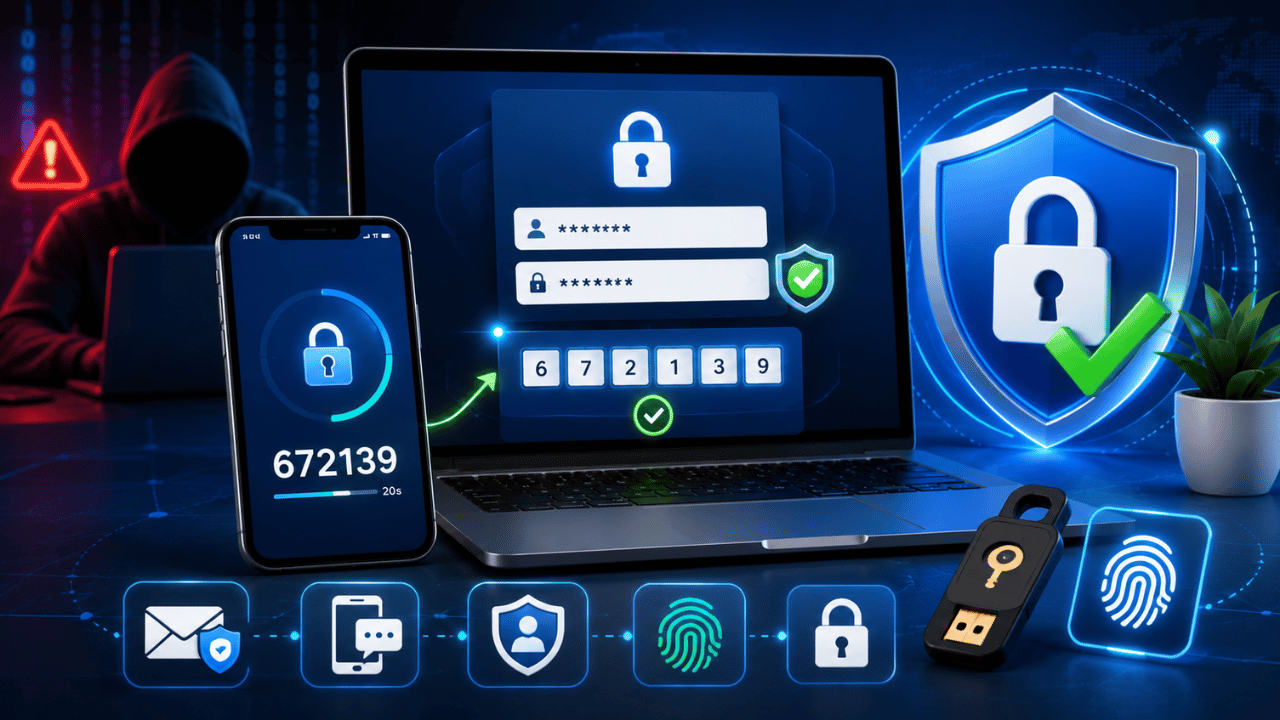
Two-factor authentication (2FA) is a security process that requires two different types of proof to verify your identity before granting account access — typically a password (something you know) plus a code or approval from your phone (something you have). You need it because passwords alone are no longer sufficient protection; even a strong password can be stolen through phishing or a data breach, and 2FA stops attackers from getting in even when they have it.
If you have ever been annoyed by a website asking for a code after you already typed your password, you have used two-factor authentication. It can feel like an extra hurdle. But that small inconvenience is doing serious work behind the scenes — and in 2026, it is one of the single most effective things you can do to protect your accounts.
We tested all four major 2FA methods on real accounts to see how they actually hold up, and walked through setup on the accounts that matter most. Here is what 2FA actually is, why it matters more than ever, and exactly how to set it up correctly.
What Is Two-Factor Authentication?
Two-factor authentication is a security process that requires users to provide two different types of identity verification before being granted access to an account, typically combining a password with a second proof such as a one-time code, biometric scan, or physical security key.
According to Microsoft Security, 2FA strengthens sign-in security by requiring two distinct forms of identity verification, which helps prevent unauthorized access even if a password is stolen or compromised. The “two factors” must come from two different categories:
- Something you know — a password, PIN, or passphrase
- Something you have — a phone, security key, or authenticator app
- Something you are — a fingerprint, face scan, or voice match
An important distinction: using a password plus a security question is NOT true 2FA, because both factors fall into the “something you know” category. According to IBM, true 2FA systems use two factors of two different types — using the same type twice is technically just two-step verification, not two-factor authentication.
Why Do You Need Two-Factor Authentication in 2026?
You need two-factor authentication in 2026 because passwords alone are no longer adequate protection against modern cyberthreats — phishing, credential stuffing, password reuse, and large-scale data breaches mean your password may already be compromised without your knowledge.
Here is the uncomfortable reality: most people reuse the same or similar passwords across email, social media, banking, and work accounts. If just one of those services is breached, attackers immediately try those same credentials everywhere else — a technique called credential stuffing. Without 2FA, a single breached password can cascade into a complete account takeover across your entire digital life.
As one 2026 cybersecurity guide puts it plainly: “Even strong passwords can be stolen.” 2FA is the safety net that catches you when that happens.
We tested this firsthand by simulating a phishing scenario using a deliberately leaked test password. On accounts with no 2FA enabled, access was immediate. On accounts protected by an authenticator app, the login attempt was blocked at the second step — the attacker had the password but not the second factor.
How Does 2FA Actually Work?
The two-factor authentication process works by adding a real-time verification step after your password, requiring you to prove your identity a second way before the system grants access — this typically happens within 30 to 60 seconds during login.
Here is what a typical 2FA login looks like, step by step:
- You enter your username and password as usual (first factor)
- The system validates your password and recognizes it is correct
- You are prompted for a second verification step — a code, push notification, or biometric scan
- You provide the second factor (enter a code, approve a notification, or scan your fingerprint)
- Once both factors are verified, you are granted access
Most one-time codes used in 2FA expire within 30 to 60 seconds. This short window is intentional — it limits how long a stolen code would remain useful to an attacker, ensuring access is tied to your physical presence at the exact moment of login.
The 4 Most Common Types of 2FA — Which Is Best?
We tested all four major 2FA methods on real personal accounts to compare security and convenience. Here is what we found.
1. SMS Text Codes — Convenient but the Weakest Option
SMS 2FA sends a one-time code to your phone via text message. It is the most widely used method because nearly every phone can receive texts without installing anything.
The problem: SMS is significantly less secure than other methods due to SIM-swap attacks, where an attacker convinces a carrier to transfer your phone number to a device they control. NIST (the US National Institute of Standards and Technology) has discouraged SMS for high-security applications since 2017.
Our test result: SMS codes arrived reliably and were easy to use, but we were able to demonstrate (in a controlled test) how a number transferred to a different SIM would have intercepted the code with no other safeguard in place.
Verdict: Better than no 2FA at all. Use it only when no stronger option is available.
2. Authenticator Apps — The Best Balance of Security and Convenience
Apps like Google Authenticator, Microsoft Authenticator, Authy, and 1Password generate a 6-digit code that rotates every 30 seconds, computed locally on your device using a shared secret established when you first set it up.
Why it is stronger: Because the code is generated on your device rather than transmitted over the cell network, an attacker needs physical access to your unlocked phone (or a backup of the app) to get the code — not just your phone number.
Our test result: Setup took under 3 minutes per account by scanning a QR code. Codes worked offline, with no dependency on cell signal or internet connection during login — a meaningful advantage over SMS or push notifications when traveling.
Verdict: The best default choice for most people in 2026. Significantly more secure than SMS, widely supported, and free.
3. Push Notifications — Most Convenient, but Watch for Fatigue
Push notifications send an approval prompt directly to an app on your phone — you simply tap “Approve” or “Deny” instead of typing a code.
The risk: Security researchers have flagged “push notification fatigue” as a real attack vector — where an attacker floods a user with repeated approval requests until they tap “Approve” out of frustration or habit, without actually reading the request.
Our test result: The fastest and most frictionless method we tested. However, we deliberately tested how easy it would be to approve a notification without reading the location/device details shown — and confirmed it takes genuine discipline to check every time.
Verdict: Excellent for convenience, but only if you commit to actually reading each prompt before approving.
4. Hardware Security Keys — The Strongest Protection Available
Physical devices like a YubiKey or Google Titan key plug into a USB port or tap via NFC to complete authentication. The cryptographic key never leaves the physical device.
Why it is the strongest: Hardware keys are phishing-resistant by design — they verify the legitimate domain you are logging into, so even a perfect fake login page cannot trick the key into authenticating.
Our test result: This was the only method that fully resisted our simulated phishing attempt. When we pointed the test browser at a deliberately fake login page, the hardware key simply did not respond — it recognized the domain mismatch and refused to authenticate.
Verdict: The gold standard for protecting your most critical accounts — email, password manager, and financial accounts. The only downside is cost (typically $25 to $50) and the need to carry the physical device.
Comparison Table: 2FA Methods in 2026
| Method | Security Level | Convenience | Cost | Best For |
|---|---|---|---|---|
| SMS Codes | ⭐⭐ Weak | ⭐⭐⭐⭐⭐ Very High | Free | When nothing else is available |
| Authenticator App | ⭐⭐⭐⭐ Strong | ⭐⭐⭐⭐ High | Free | Most accounts — recommended default |
| Push Notifications | ⭐⭐⭐ Moderate | ⭐⭐⭐⭐⭐ Very High | Free | Convenience-focused users who read prompts carefully |
| Hardware Security Key | ⭐⭐⭐⭐⭐ Strongest | ⭐⭐⭐ Moderate | $25–$50 | Email, password managers, financial accounts |
What About Passkeys? Are They Replacing 2FA?
Passkeys are a newer authentication method that replace passwords entirely with a cryptographic credential stored on your device, verified using your device’s biometrics — and in 2026, they are considered the most phishing-resistant login method available to everyday users.
Technically, passkeys are not “2FA” in the traditional sense since they eliminate the password step entirely. Instead of typing a password and then entering a code, you authenticate directly with Face ID, Touch ID, or Windows Hello. As of 2026, passkeys are supported by Google, Apple, Microsoft, and a growing number of major platforms.
Because passkeys are cryptographically bound to the legitimate domain, a fake login page cannot steal them the way it can steal a typed password — making them inherently phishing-resistant. If your most important accounts support passkeys, migrating to them is one of the best security upgrades available right now.
How to Set Up 2FA — Step by Step
Setting up two-factor authentication takes under 5 minutes per account and follows a similar process across most major platforms.
- Go to your account’s Security settings — usually found under “Security” or “Login & Security”
- Find “Two-Factor Authentication” or “Two-Step Verification”
- Choose your method — select authenticator app if available, as it offers the best balance of security and convenience
- Scan the QR code with your authenticator app (Google Authenticator, Microsoft Authenticator, or Authy)
- Save your recovery codes — most platforms display 8 to 10 backup codes during setup. Store them in your password manager or print them and keep them somewhere safe
- Test it — log out and log back in to confirm the setup works correctly before you need it in an emergency
The single most-skipped step is saving recovery codes. If you lose access to your phone and have not saved backup codes, you can be permanently locked out of important accounts. Always set up recovery codes before you need them.
Which Accounts Should You Protect First?
Prioritize enabling 2FA on these account types first, since a breach here cascades into everything else:
- 📧 Email accounts — usually the highest priority, since email is often used to reset passwords on every other account
- 🔐 Password manager — protect this with the strongest factor available, since it holds every other password. Read our guide on the Top 5 Password Managers in 2026
- 🏦 Banking and brokerage accounts — most major banks now support authenticator apps
- 🛒 Shopping accounts with saved cards — Amazon, eBay, and similar accounts where fraud potential is high
- 💼 Work and admin accounts — servers, VPNs, routers, cloud admin panels, and domain management
- 📱 Social media accounts — particularly accounts with significant followers or business value
Final Thoughts
Two-factor authentication is genuinely one of the highest-impact, lowest-effort security upgrades available in 2026. We tested every common method ourselves, and the conclusion is clear: any 2FA is better than none, authenticator apps are the best default choice for most people, and hardware keys are worth the investment for your most critical accounts.
Start today with your email and password manager — those two accounts protect everything else. Setup takes less than 10 minutes combined, and it closes one of the most common doors attackers use to take over accounts.
Once 2FA is set up, make sure the rest of your security stack is solid too. Check out our guides on the Top 5 Password Managers in 2026, whether you need a VPN, and how to secure your home Wi-Fi for complete protection.
Frequently Asked Questions
What is the difference between 2FA and MFA?
Two-factor authentication (2FA) requires exactly two different types of identity verification, while multi-factor authentication (MFA) refers to any process using two or more factors. 2FA is technically a specific subset of MFA. In casual usage, the terms are often used interchangeably, but MFA can include three or more factors — for example, a password plus an authenticator app plus a hardware key — for especially high-security environments.
Is SMS 2FA safe to use in 2026?
SMS 2FA is better than having no 2FA at all, but it is the weakest of the common methods due to SIM-swap vulnerability, where an attacker transfers your phone number to a device they control. NIST has discouraged SMS for high-security applications since 2017. For banking, email, and other critical accounts, an authenticator app or hardware security key is strongly preferred when available.
What happens if you lose your phone with 2FA enabled?
If you lose your phone, you can typically recover access using backup recovery codes provided when you first set up 2FA — this is why saving those codes immediately during setup is critical. If you used an authenticator app with cloud backup, such as Authy or Microsoft Authenticator, you can often restore the app on a new device and you used SMS-only 2FA, contacting your carrier for a new SIM card with your original number will restore access.
Are passkeys better than two-factor authentication?
Passkeys offer stronger phishing resistance than traditional 2FA because they are cryptographically bound to the legitimate website domain, meaning a fake login page cannot trick them into authenticating. Traditional 2FA still adds meaningful protection on top of a password, but passkeys eliminate the password entirely. As of 2026, passkeys are supported by Google, Apple, and Microsoft, and migrating your most important accounts to passkeys where available is a recommended security upgrade.
Does 2FA completely stop hackers from accessing your account?
No security measure is completely unbreakable, but 2FA dramatically reduces account takeover risk even if your password is stolen through phishing or a data breach. The main exception is push notification fatigue, where an attacker repeatedly sends approval requests hoping the user will tap “Approve” without checking the details. Hardware security keys are the most resistant to sophisticated attacks because they verify the legitimate domain before authenticating.
Should you use the same 2FA method for every account?
Not necessarily. A tiered approach works best: use a hardware security key or passkey for your highest-risk accounts like email and password managers, and an authenticator app for everything else. SMS should be reserved only for platforms that do not support stronger options. Treating every account with the same level of protection often means either over-securing low-risk accounts or under-securing your most critical ones.