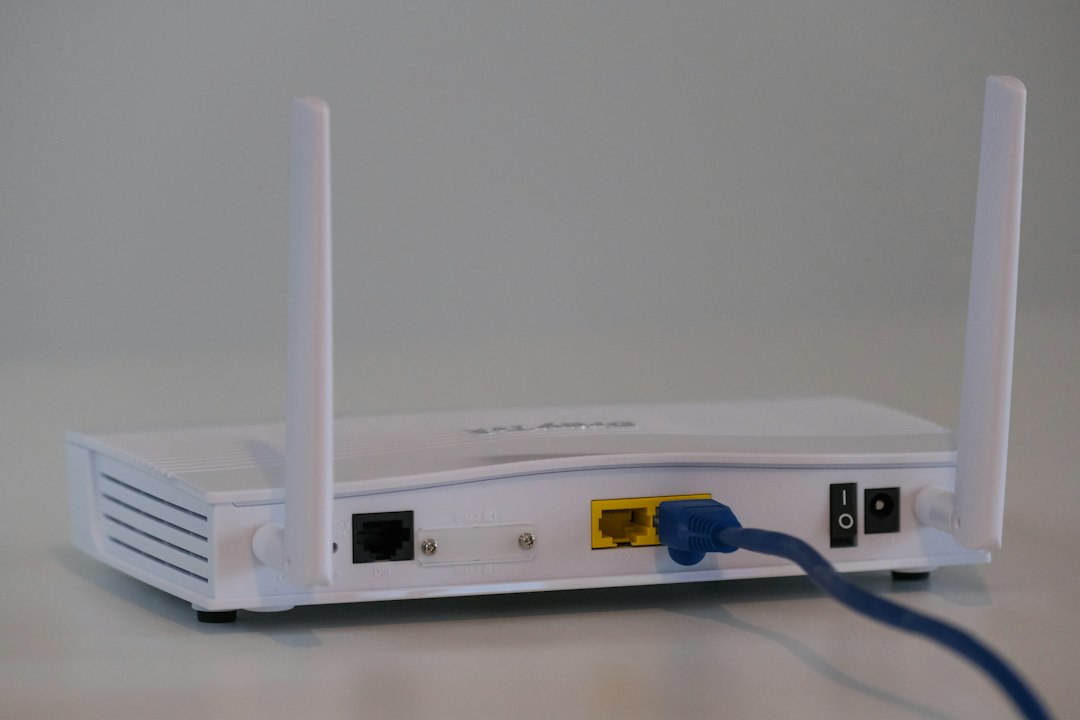
To fix slow Wi-Fi at home, first run a speed test next to your router to see whether the problem is your internet plan or your Wi-Fi. Then restart your router, move it to a central open spot, switch to the 5 GHz band, change a crowded channel, update the router firmware and remove devices that hog bandwidth. If those do not help, a mesh system or a call to your internet provider is the next step. Here are 10 fast fixes in the order that works best.
Key Takeaways
- Test your speed next to the router first, so you know whether the problem is the plan or the Wi-Fi.
- A simple restart and a better router position fix a surprising number of problems.
- The 5 GHz band is faster at short range, while the 2.4 GHz band reaches further but is slower and more crowded.
- Too many devices, a crowded channel and old firmware are common causes of slowdowns.
- If the speed is slow even when plugged in by cable, the problem is probably your provider or modem.
Why Is My Wi-Fi So Slow?
Wi-Fi gets slow when the signal is weak, the network is crowded or something is wrong with the router or your internet service. Walls, floors, metal objects and distance weaken the signal. Neighbouring networks, microwaves and Bluetooth devices cause interference. Many devices streaming and downloading at once can also share the same bandwidth. Finally, the problem may not be Wi-Fi at all, but the speed you receive from your provider.

How to Fix Slow Wi-Fi: 10 Fast Fixes
1. Run a speed test next to the router
Stand next to your router, connect a laptop by Ethernet cable if you can, and run a speed test. If the wired speed is far below what you pay for, the problem is the modem or your provider. If the wired speed is fine and the Wi-Fi speed is slow, the problem is your wireless setup, and the next fixes will help.
2. Restart your modem and router
Unplug both from power, wait 30 seconds, plug in the modem first and the router second, and wait a few minutes for the lights to settle. This clears many temporary faults and refreshes your connection.
3. Move the router to a better spot
Place it in a central, open, raised position, such as a shelf in the middle of your home. Avoid cabinets, floors, corners and spots near thick walls, metal objects, fish tanks and microwave ovens. A small move can make a big difference for the rooms that are slow.
4. Use the 5 GHz band for fast, close devices
Most routers broadcast a 2.4 GHz band and a 5 GHz band. The 5 GHz band is faster and less crowded but reaches a shorter distance, and 2.4 GHz travels further but is slower and more prone to interference. Connect nearby phones, laptops and streaming devices to 5 GHz, and keep 2.4 GHz for far-away or smart home devices. Newer Wi-Fi 6 and 6E routers also offer better speed and handling of many devices.
5. Change to a less crowded Wi-Fi channel
If you live in a busy building, neighbouring networks can interfere with yours. Log in to your router and switch the channel, or set it to automatic, and test again. A free Wi-Fi analyser app on your phone can show which channels are busy.
6. Update your router firmware
Firmware updates fix bugs, improve performance and close security holes. Check your router’s app or admin page and install any update. Replace a very old router, because older models cannot match the speeds of newer ones.
7. Disconnect devices that hog bandwidth
Large downloads, cloud backups, game updates and video streams all share your connection. Check which devices are connected in your router app and pause heavy uses. If your router has quality of service settings, prioritise video calls and work devices.
8. Check for interference and reduce clutter
Microwaves, cordless phones, baby monitors and Bluetooth devices can interfere with 2.4 GHz Wi-Fi. Keep the router away from them. Also, make sure the antennas are upright and not blocked.
9. Fix the device, not just the router
If only one device is slow, restart it, update its software and forget and rejoin the network. Our guide to speeding up your Windows 11 PC can help if a laptop is the problem. If Windows says your cable connection has an unidentified network, see our guide to fixing the Unidentified network Ethernet error.
10. Add a mesh system or a wired link for big homes
If some rooms are always weak, a mesh Wi-Fi system spreads coverage with several units. For the best results, connect the units by Ethernet cable. A powerline adapter or a cable run to a TV, console or desktop can also take load off your Wi-Fi.
When Is the Problem Your Internet Provider?
If your wired speed test is far below your plan, even after restarting the modem, contact your provider. Ask them to check the line, the modem and any outages in your area. Also check whether you are on the right plan for the number of people and devices in your home. For more ideas, read our guide to increasing your internet speed without upgrading.
How to Keep Your Wi-Fi Fast and Safe
- Use a strong password and WPA3 or WPA2 security. Strangers on your network use your bandwidth. Follow our guide to protecting your home Wi-Fi from hackers.
- Put smart devices on a guest network. This keeps them separate from your computers. See our list of smart home devices worth buying.
- Restart the router now and then, and keep it ventilated so that it does not overheat.
- Re-test after every change so that you know what actually helped.
Frequently Asked Questions
Why is my Wi-Fi slow but my internet plan is fast?
The signal may be weak, the channel crowded, the router old or the device far away. Test with a cable next to the router. If the wired speed is good, the problem is your Wi-Fi setup.
Does restarting the router really help?
Yes. A restart clears temporary glitches and refreshes the connection. It is the easiest first fix.
Is 5 GHz or 2.4 GHz better?
5 GHz is faster at short range and less crowded, and 2.4 GHz reaches further but is slower and more affected by interference. Use 5 GHz for nearby devices and 2.4 GHz for far ones.
Where should I put my router?
Place it in a central, open and raised position, away from walls, metal objects, microwaves and cabinets.
Will a Wi-Fi extender or mesh system help?
Yes, for large homes or rooms with weak signal. A mesh system usually gives a more consistent result than a single extender, especially if the units are connected by cable.
Why does my Wi-Fi slow down at night?
Evenings are busy times, with many people streaming at once in your home and in your neighbourhood. A less crowded channel, the 5 GHz band and a better router can help.
Conclusion
Slow Wi-Fi is usually fixable without spending money. Test your speed by cable, restart your modem and router, move the router, use the 5 GHz band, change a crowded channel, update the firmware and trim heavy devices. If large parts of your home are still weak, add a mesh system, and if the wired speed is also slow, call your provider.
Related reading: How to increase your internet speed · Fix the Unidentified network Ethernet error · How to protect your home Wi-Fi from hackers · Smart home devices worth buying