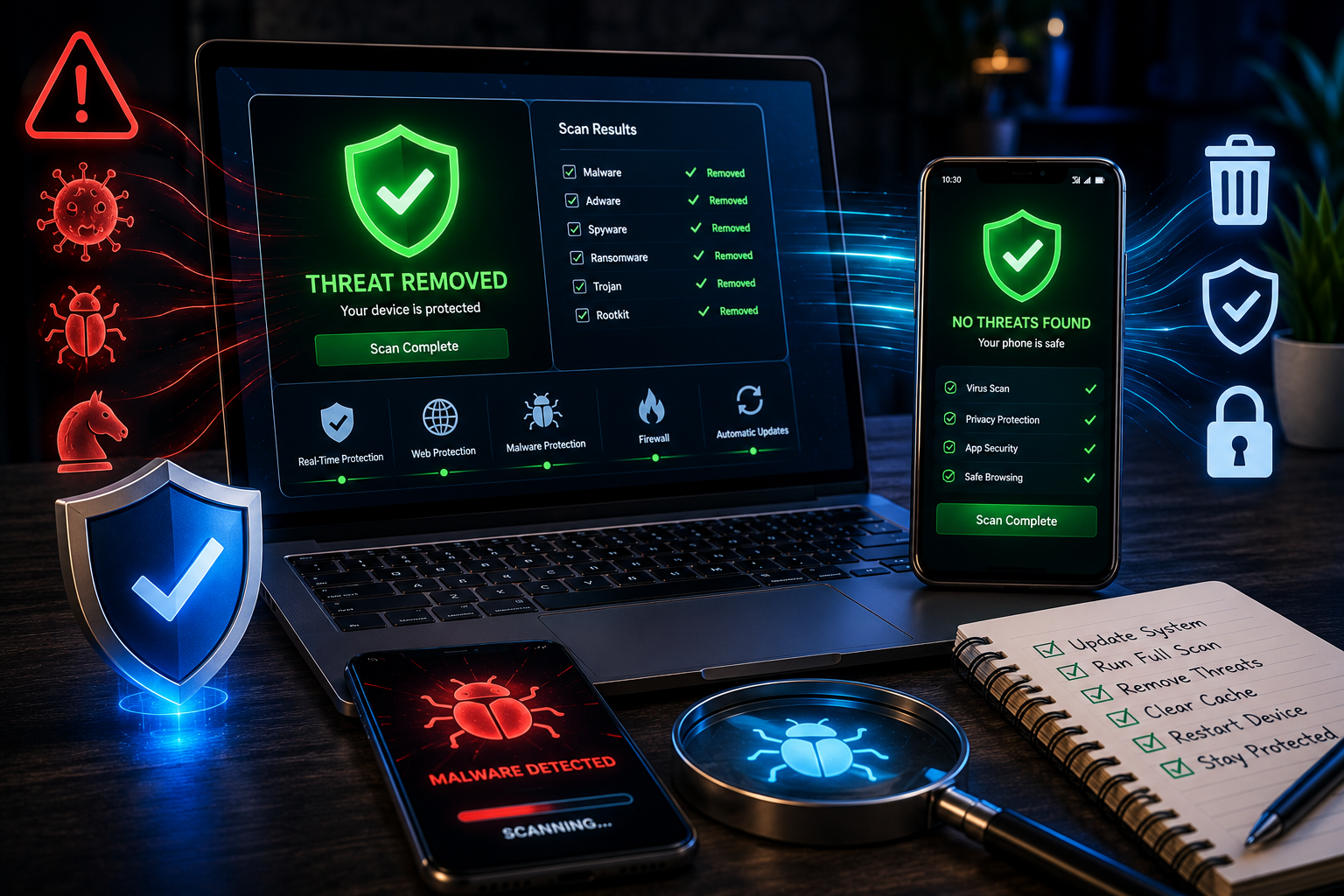
To remove malware from your PC for free in 2026, follow these steps: disconnect from the internet, restart in Safe Mode, run a full scan with Windows Defender, run a second scan with Malwarebytes Free (the best free malicious malware removal tool available), remove all detected threats, clean your browser including Chrome, and change your passwords. For phones, factory reset is the most effective option when standard removal fails. This entire process costs nothing.
If your PC is running slowly, showing unexpected ads, redirecting your browser, or behaving strangely — malware is a likely culprit. And if the first thing you did was search for a “malware removal service,” you may have already encountered one of the most common scams in cybersecurity: fake tech support websites that charge $100 to $300 to “fix” a problem you can solve yourself for free in under an hour.
This guide walks you through a free process that security professionals commonly recommend: cut the PC off from the internet, scan with two different tools, clean your browser, and secure your accounts. Most people can finish it in about an hour. Here is the complete step-by-step guide.
How Do You Know If Your PC Has Malware?
Common signs your PC has malware in 2026 include unexplained slowdowns, browser redirects to unknown websites, new toolbars or extensions you did not install, pop-up ads appearing even when your browser is closed, programs launching at startup that you do not recognize, and your antivirus being disabled without your action.
Not every slow PC has malware — hardware limitations, a full hard drive, and too many startup programs cause the same symptoms. But if you notice multiple signs simultaneously, or if your antivirus has been disabled and cannot be re-enabled, malware is a strong possibility. Here is how to confirm and remove it.
Step 1: Disconnect from the Internet Immediately
Disconnecting your PC from the internet is the first step in malware removal because many types of malware — particularly ransomware, spyware, and trojans — actively communicate with external servers to receive commands, exfiltrate your data, or download additional malicious payloads while running.
- Unplug your Ethernet cable if connected via cable
- Click the Wi-Fi icon in the taskbar and toggle Wi-Fi off
- Or enable Airplane Mode: Settings → System → Network → Airplane Mode → On
Keep your PC disconnected until the full removal process is complete.
Step 2: Restart Your PC in Safe Mode
Restarting in Safe Mode is critical before running any malware scan because Safe Mode loads only essential Windows components, preventing most malware from launching — which means it cannot actively block or hide from the scanning process.
- Click the Start menu → Power button
- Hold Shift and click Restart
- Select Troubleshoot → Advanced Options → Startup Settings → Restart
- Press 4 for Safe Mode or 5 for Safe Mode with Networking
- Choose Safe Mode with Networking only if you need to download tools
Your screen will look different in Safe Mode — lower resolution, black desktop, “Safe Mode” in the corners. This is completely normal.
Step 3: Run a Full Scan with Windows Defender — Free Malicious Malware Removal Tool
Windows Defender — built into Windows 11 as Microsoft Defender Antivirus — is a genuinely capable, completely free malicious malware removal tool that detects and removes most common threats without any additional installation.
Independent labs such as AV-TEST regularly include Microsoft Defender in their protection tests, and it has scored well in many of them, so check the latest results on the lab’s website. For other options, see our guide to the best free antivirus software.
- Open Windows Security — search for it in the Start menu
- Click Virus & threat protection
- Click Scan options
- Select Full scan — not Quick scan — and click Scan now
- Wait for the scan to complete — typically 30 to 60 minutes
- Review detected threats and click Remove all
For deeply embedded malware, also run an Offline Scan:
- Windows Security → Virus & threat protection → Scan options
- Select Microsoft Defender Antivirus (offline scan)
- Click Scan now — your PC restarts and scans before Windows loads
Step 4: Run Malwarebytes Free — Best Free Malware Removal Tool in 2026
Malwarebytes Free is the best free malware removal tool in 2026 for catching adware, potentially unwanted programs (PUPs), and browser hijackers that Windows Defender sometimes misses — making it the essential second scanner in any complete removal process.
Malwarebytes Free is a popular on-demand scanner. The free version scans and removes threats when you run it manually, but it does not provide real-time protection, which is a feature of the paid plan.
- Download Malwarebytes from malwarebytes.com — ensure you are on the official site. If your PC is offline, download the installer on another device and copy it over with a USB drive
- Install and open the application
- Click Scan
- Wait for the scan to complete — typically 5 to 15 minutes
- Click Quarantine to isolate all detected threats
- Restart your PC when prompted
Running a second scanner is worthwhile because different tools detect different threats, so something one scanner misses may be caught by another.
Step 5: Remove Suspicious Programs Manually
Manually reviewing and uninstalling suspicious programs catches software that scanners sometimes miss — particularly legitimate-looking programs bundled with free software downloads that behave as unwanted adware.
- Open Settings → Apps → Installed apps
- Sort by Date installed — look at everything installed around the time problems began
- Search any unfamiliar program name + “malware” online before uninstalling
- Right-click suspicious programs → Uninstall
- Common suspicious categories: fake system optimizers, registry cleaners, browser toolbars, “PC speed boost” utilities
Step 6: How to Remove Malware from Chrome and Your Browser
Removing malware from Chrome and other browsers is essential after running your scans because browser hijackers and adware install persistent extensions and modify search engine settings that survive a standard antivirus scan if not removed separately.
Remove Malware from Chrome:
- Open Chrome → Settings → Extensions — remove any extension you do not recognize
- Settings → Search engine → change back to Google
- Settings → On startup → check for unwanted homepage URLs
- Use Chrome’s built-in cleanup: Settings → Reset settings → Restore settings to their original defaults
- Chrome also has a built-in malware scanner: Settings → Reset settings → Clean up computer → Find harmful software
Remove Malware from Microsoft Edge:
- Settings → Extensions → Manage extensions — remove unknowns
- Settings → Privacy, search, and services → Address bar and search → change search engine
- Settings → Reset settings → Restore settings to their default values
After cleaning your browser, clear all cached data: Settings → Privacy and security → Clear browsing data → select All time → check all boxes → Clear data.
Step 7: Clean Startup Programs
Many malware programs survive removal by adding themselves to your PC’s startup list, relaunching every time Windows boots even after the main files are deleted.
- Press Ctrl + Shift + Esc to open Task Manager
- Click the Startup apps tab
- Look for unfamiliar programs with “Unknown” publisher
- Right-click suspicious entries → Disable
- Also check: press Windows + R, type msconfig, click Services tab, check “Hide all Microsoft services”, look for anything suspicious
Step 8: Does a Factory Reset Remove Malware? (Last Resort)
Yes — a factory reset does remove malware from a PC because it reinstalls Windows completely, wiping all files including malicious software. However, it is a last resort that also deletes all your installed apps, settings, and any personal files not backed up beforehand.
Will a factory reset remove all malware? In almost all cases, yes — even stubborn rootkits cannot survive a complete Windows reinstall. The exception is BIOS-level or firmware malware, which is extremely rare and typically only found in nation-state attacks.
How to reset your Windows 11 PC:
- Settings → System → Recovery
- Click Reset PC
- Choose “Remove everything” for a clean malware-free system (or “Keep my files” to preserve personal documents — but note this may not remove all malware)
- Select Cloud download for a fresh Windows install from Microsoft’s servers
- Follow the prompts — the process takes 30 to 60 minutes
Before resetting: Back up all important files to an external drive or cloud storage first. Read our guide on How to Backup Your Computer Data Safely before proceeding.
How to Remove Malware from Phone in 2026
Removing malware from a phone follows different steps than a PC — most phone malware arrives through fake apps, malicious links, or unofficial app stores, and the removal process depends on whether you use Android or iPhone.
How to Remove Malware from Android Phone:
- Uninstall suspicious apps: Settings → Apps → look for apps you do not remember installing, especially those with generic names or no clear purpose
- Run Google Play Protect scan: Open Google Play Store → tap your profile icon → Play Protect → Scan — Google’s built-in malware scanner checks all installed apps
- Clear browser data: Open Chrome on Android → Settings → Privacy → Clear browsing data
- Boot into Safe Mode on Android: Hold power button → long-press “Power off” → Safe mode — this disables third-party apps temporarily so you can identify which one is causing problems
- Factory reset Android (last resort): Settings → General management → Reset → Factory data reset
Does Factory Reset Remove Malware from iPhone?
Yes — iPhones are significantly harder to infect than Android devices due to Apple’s closed ecosystem. If you suspect iPhone malware, first delete any recently installed apps, clear Safari history and website data, and update to the latest iOS. A full factory reset (Settings → General → Transfer or Reset iPhone → Erase All Content) removes all malware from an iPhone completely.
Signs of Malware on Phone:
- Battery draining unusually fast
- Phone overheating when not in heavy use
- Unexpected data usage spikes
- Apps crashing more than usual
- Unfamiliar apps appearing that you did not install
- Browser redirects and pop-up ads inside apps
Step 9: Change All Your Passwords After Malware Removal
Changing your passwords after a malware infection is critical because certain malware types — particularly keyloggers and info-stealers — capture passwords as you type them, meaning any credential used while infected may already be compromised.
Priority order for password changes:
- Email account — this controls password resets for every other account
- Password manager — if you use one. Read our guide on the Top 5 Password Managers in 2026
- Banking and financial accounts
- Work accounts and VPNs
- Social media accounts
Also enable two-factor authentication on every important account — read our guide on What Is Two-Factor Authentication for the exact setup steps.
Complete Malware Removal Summary Table
| Step | Action | Time | Tool |
|---|---|---|---|
| 1 | Disconnect from internet | 1 min | Manual |
| 2 | Boot into Safe Mode | 3 min | Windows |
| 3 | Windows Defender full scan | 30-60 min | Free built-in |
| 4 | Malwarebytes scan | 10-15 min | Free download |
| 5 | Uninstall suspicious programs | 10 min | Windows Settings |
| 6 | Remove malware from Chrome/browser | 5 min | Browser settings |
| 7 | Clean startup programs | 5 min | Task Manager |
| 8 | Factory reset if needed | 30-60 min | Windows Recovery |
| 9 | Change all passwords | 15-20 min | Password manager |
How to Prevent Malware in 2026
- ✅ Keep Windows and all software updated — most malware exploits known vulnerabilities
- ✅ Never download software from unofficial sources
- ✅ Do not click email links from unknown senders
- ✅ Install uBlock Origin in Chrome — blocks malicious ad networks
- ✅ Keep Windows Defender real-time protection enabled at all times
- ✅ Secure your home network — read our guide on How to Protect Your Home Wi-Fi from Hackers
- ✅ Only install apps from official sources on your phone — Google Play Store or Apple App Store
- ✅ Lock down your phone with our smartphone security checklist and learn the basics in what cybersecurity is
Final Thoughts
Removing malware from your PC or phone in 2026 does not require paying for software or calling a tech support service. The combination of Windows Defender and Malwarebytes Free — both completely free malicious malware removal tools — eliminates the vast majority of common infections when used together in Safe Mode.
For phones, Google Play Protect handles Android scanning for free, while iPhone malware is rare enough that a browser data clear and suspicious app removal usually resolves the issue. A factory reset removes malware completely from both PC and phone as a last resort — but try the steps in this guide first.
Frequently Asked Questions
How to remove malware from PC for free in 2026?
To remove malware from your PC for free in 2026, boot into Safe Mode, run a full scan with Windows Defender (free and built-in), then run a second scan with Malwarebytes Free. Together these two free malicious malware removal tools catch and remove the vast majority of infections including viruses, adware, browser hijackers, and spyware — at zero cost.
Will a factory reset remove malware?
Yes — a factory reset removes malware completely from both PCs and phones because it wipes the entire system and reinstalls the operating system from scratch. On Windows 11, choose “Remove everything” during the reset process for a clean malware-free installation. The downside is that a factory reset also deletes all installed apps and settings, so it should be used as a last resort after standard removal tools have failed.
Does a factory reset remove malware from a phone?
Yes — a factory reset removes malware from both Android and iPhone completely. On Android, go to Settings → General management → Reset → Factory data reset. On iPhone, go to Settings → General → Transfer or Reset iPhone → Erase All Content. Back up important data before resetting. For Android specifically, try Google Play Protect scan and deleting suspicious apps first before resorting to a full factory reset.
How to remove malware from Chrome browser?
To remove malware from Chrome, go to Settings → Extensions and remove any extensions you do not recognize. Then go to Settings → Search engine and restore Google as your default. Use Chrome’s built-in cleanup tool at Settings → Reset settings → Clean up computer → Find harmful software. Finally, reset Chrome completely via Settings → Reset settings → Restore settings to their original defaults, then clear all browsing data from the Privacy and security section.
What is the best free malicious malware removal tool in 2026?
The best free malware removal combination in 2026 is Windows Defender (Microsoft Defender Antivirus) paired with Malwarebytes Free. Windows Defender is built into Windows 11 and performs well in independent antivirus tests. Malwarebytes Free specializes in catching adware, PUPs, and browser hijackers that Defender sometimes misses. Using both tools together in Safe Mode provides the most thorough free malware removal available without paying for any software.
How to remove malware from phone in 2026?
To remove malware from an Android phone, open Google Play Store → Play Protect → Scan to run a free malware scan, then uninstall any suspicious apps you do not remember installing. Boot into Android Safe Mode to identify which app is causing problems, then delete it. For iPhones, delete suspicious apps, clear Safari history and data, and update to the latest iOS. If problems persist on either platform, a factory reset removes all malware completely.
Can malware survive a factory reset?
In almost all cases, no — malware cannot survive a factory reset that reinstalls the operating system. The rare exception is BIOS-level or firmware malware that infects the hardware firmware rather than the OS files, but this type of malware is extremely sophisticated and almost exclusively found in nation-state cyberattacks targeting specific organizations. For the overwhelming majority of home users, a factory reset is a guaranteed malware removal method of last resort.