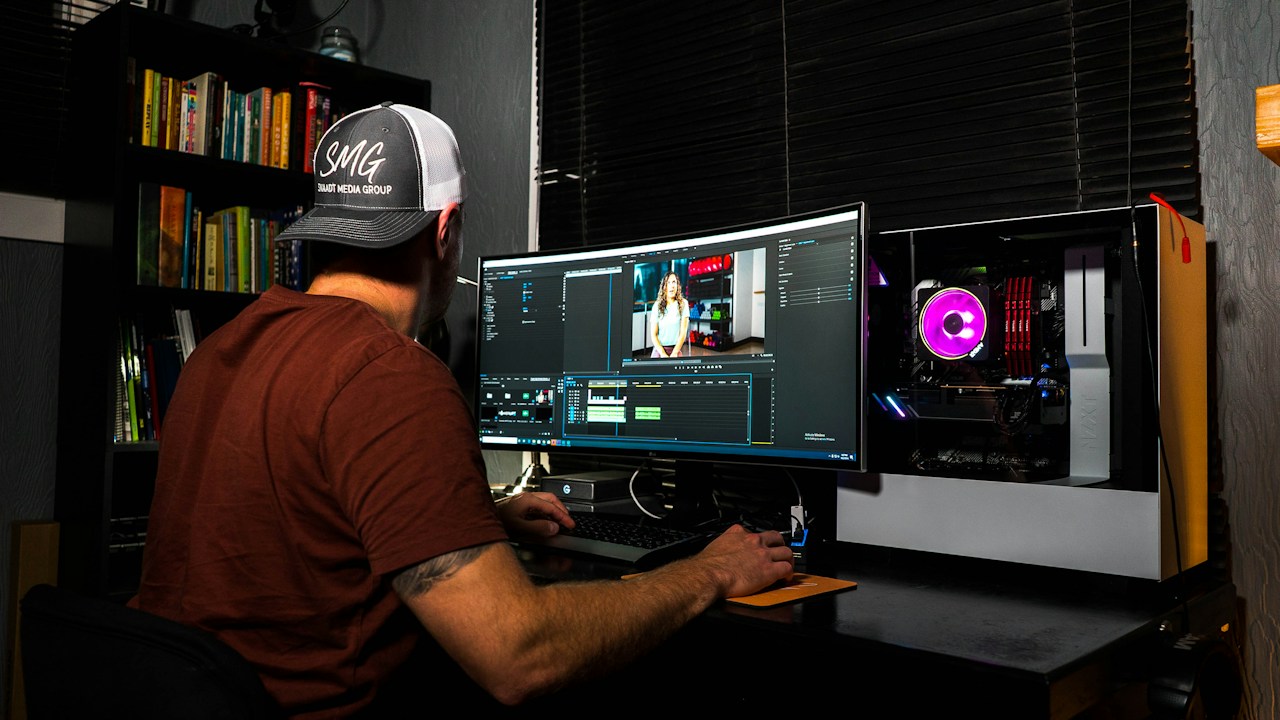
The best free photo editing software for Windows depends on what you need. Paint.NET is best for quick edits, GIMP for Photoshop-style power, Photopea for editing in your browser, and darktable for RAW photos. All four are free and safe when you download them from their official sites. Here is how they compare.
Key Takeaways
- GIMP is the best overall free editor, with layers, masks and curves, but it takes time to learn.
- Paint.NET is the best for beginners on Windows because it is fast, light and simple.
- Photopea is the best online option and opens Photoshop PSD files without any install.
- darktable is the best free choice for editing RAW photos from a camera.
- Always download free software from the official website to avoid fake installers.
What Is Free Photo Editing Software?
Free photo editing software is a program or web app that lets you crop, retouch, colour-correct and resize photos at no cost. The best free editors offer real tools such as layers, masks, curves and RAW support, and they do not add watermarks to your finished images.
Free tools fall into three groups: desktop programs you install on Windows, online editors that run in your browser, and the basic editor already built into Windows. The right choice depends on how much control you want and how often you edit.
Best Free Photo Editors for Windows: Quick Comparison
| Software | Best for | Skill level | Works offline |
|---|---|---|---|
| GIMP | Advanced edits with layers and masks | Intermediate to advanced | Yes |
| Paint.NET | Quick everyday edits on Windows | Beginner | Yes |
| Photopea | PSD files in a browser | Beginner to intermediate | No |
| darktable | RAW photo editing | Intermediate | Yes |
| PhotoScape X | Batch editing and collages | Beginner | Yes |
| Canva | Social media graphics | Beginner | No |
| Windows Photos app | Basic crop and filters | Beginner | Yes |

What Is the Best Free Photo Editing Software for Windows?
1. GIMP: best overall
GIMP is the best free photo editor overall. It is open source, runs on Windows, macOS and Linux, and offers layers, masks, curves and clone tools that cover most of what people use Photoshop for. The trade-off is a steep learning curve, so it suits people who are happy to spend time learning the interface.
2. Paint.NET: best for beginners
Paint.NET started as a replacement for Microsoft Paint and has grown into a capable editor. It supports layers, blend modes and a good effects library, launches instantly and has an active plugin community. It is Windows only, which is why it fits Windows users so well.
3. Photopea: best online editor
Photopea runs in your browser and opens Photoshop PSD files, so you can start without installing anything. It is a handy choice on a computer that is not yours. The free version is supported by ads, and a premium plan costs about $5 a month if you want them removed.
4. darktable: best for RAW photos
darktable is a free, open-source RAW editor that many photographers use as a Lightroom alternative. It handles non-destructive editing, colour work and photo organisation, and it supports hundreds of camera models. RawTherapee is a similar free option with a steep learning curve.
5. PhotoScape X: best for batch edits and collages
PhotoScape X is easy to use and works well for resizing many photos at once and for making simple collages. It is a good fit for bloggers and small shops who edit lots of images quickly.
6. Canva: best for social media graphics
Canva is mainly a design tool, but its free plan includes useful photo editing for social posts, banners and presentations. Use it when the final result is a graphic, not a retouched photograph.
7. Windows Photos app: best built-in option
The Photos app that comes with Windows can crop, rotate, adjust brightness and apply filters. It will not replace a full editor, but it is enough for quick fixes and it needs no download.
Krita is also free, but it is built for digital painting and illustration, so it is not the best pick for photo editing.
How to Choose the Right Free Photo Editor: Step-by-Step
Step 1 — Decide what you edit most
Choose Paint.NET or the Photos app for quick fixes, GIMP for detailed retouching, darktable for RAW files, and Canva for graphics.
Step 2 — Check your computer and internet
Online tools such as Photopea and Canva need a connection. If your Windows PC is running slowly, a light editor such as Paint.NET will feel faster than a heavy one.
Step 3 — Try two editors on the same photo
Edit one photo in two programs and compare the speed, tools and results before you commit to learning one.
Step 4 — Keep your originals safe
Always save edited photos as copies and keep the originals. A simple routine to back up your files safely protects your photos if something goes wrong.
Is Free Photo Editing Software Safe to Download?
Free photo editors from official websites are safe, but fake installers are a real risk. Scammers often copy the download pages of popular free tools and bundle them with malware or adware. The US Federal Trade Commission advises people to download software only from websites you know and trust, because free downloads can hide malware.
Type the program’s name into your browser and open the official site rather than clicking an ad, avoid cracked versions of paid software, and read each installer screen instead of clicking Next. If you think you have installed something bad, follow our guide to removing malware from your PC.
Frequently Asked Questions
What is the best free photo editor for Windows?
GIMP is the best free photo editor overall because it offers layers, masks and curves. Paint.NET is the best for beginners, and Photopea is the best online option.
Is there a free alternative to Photoshop?
Yes. GIMP and Photopea are the closest free alternatives to Photoshop. Photopea opens PSD files in your browser, and GIMP offers deeper tools if you install it.
What is the easiest free photo editor to learn?
Paint.NET and the built-in Windows Photos app are the easiest. Both have simple menus and let you make common edits in a few clicks.
Which free photo editor is best for RAW files?
darktable is the best free choice for RAW files, and RawTherapee is a strong alternative. Both work as free Lightroom alternatives.
Do free photo editors add watermarks?
Desktop tools such as GIMP, Paint.NET and darktable do not add watermarks. Some online tools restrict exports or show ads on the free plan, so check the limits before you start.
Can I edit photos on Windows without installing anything?
Yes. The Windows Photos app is already installed, and Photopea and Canva run in your browser with no download.
Conclusion
For most Windows users, Paint.NET is the easiest place to start, GIMP is the best choice when you want more power, Photopea is ideal for quick browser editing, and darktable is the pick for RAW photos. Try two of them on the same photo, keep your originals safe and always download from the official website.
Related reading: How to speed up your Windows 11 PC · How to back up your computer data safely · How to remove malware from your PC · Best free AI tools for students